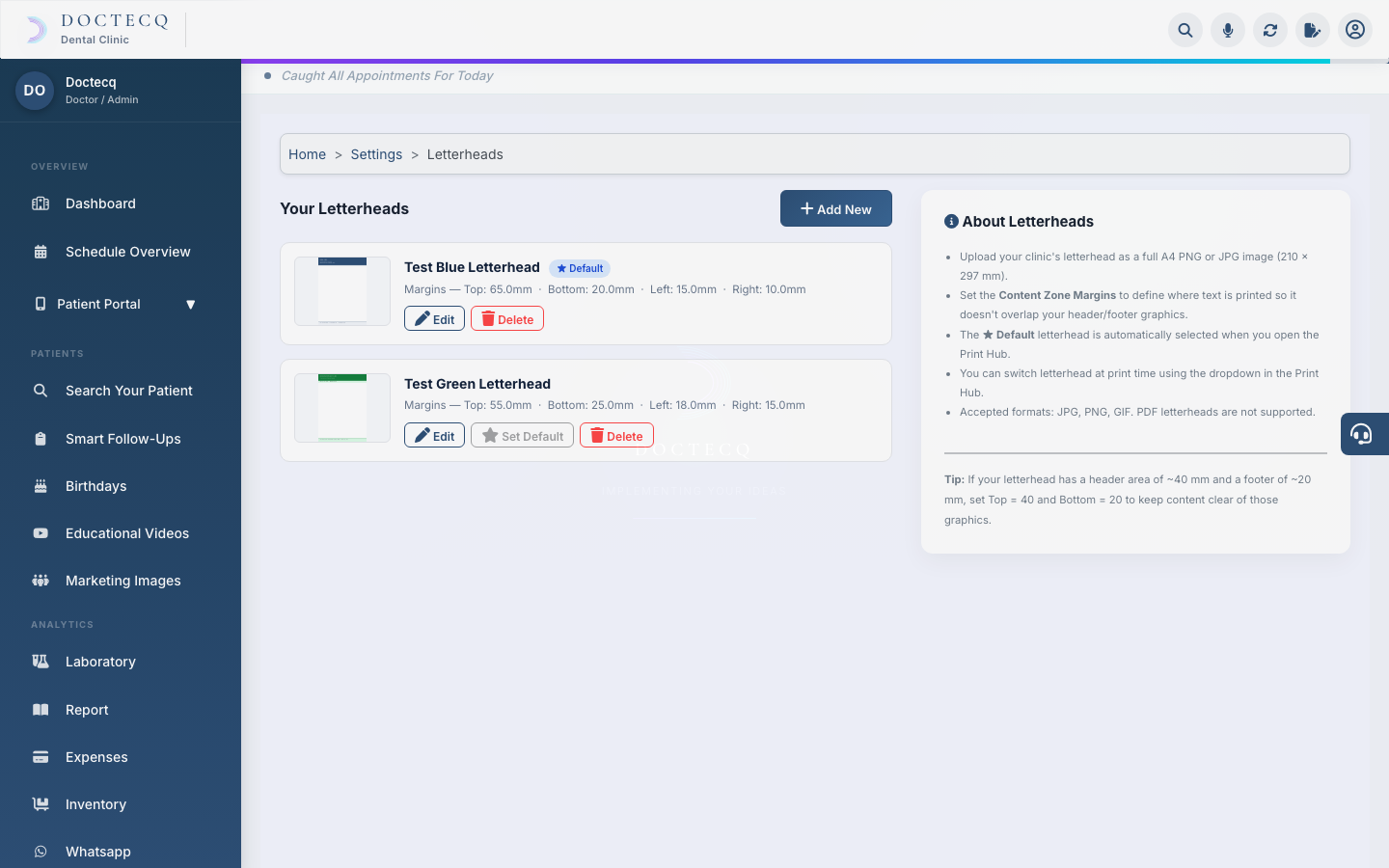
Your letterhead is the header used when you print prescriptions, bills and other documents. You can add more than one and set a default.
Who can do this
Clinic owner (admin).
Steps
- Open Settings, then click Letterhead.
- Click Add New.
- Enter a Name (for example, Clinic Letterhead).
- Choose a Letterhead Image — a JPG, PNG or GIF file.
- Set the Content Zone Margins in millimetres (top, bottom, left, right). These control where the printed content sits, so it doesn't overlap your header or footer.
- Save.
Two ways clinics print
- Digital letterhead — the image you upload prints on plain paper.
- Pre-printed stationery — if you already have printed letterhead pads, you'll use Blank Print Mode and adjust the margins so content lands in the empty space. See the Print Hub guide.
Messages you may see
- "Letterhead added successfully." — saved.
- "Invalid file type. Only JPG, PNG and GIF are allowed." — choose a supported image.
- "File upload failed. Please try again." — try a smaller image or check your connection.